You can add Hirakata Life Guide to your Home Screen or device shortcut, then turn on notifications to receive important notices and new articles. This page explains how to set it up on iPhone, iPad, Android, and PC.
You can make Hirakata Life Guide easier to use on your device.
Add Hirakata Life Guide to your device
Open the website quickly from your Home Screen or browser.
Turn on notifications
Receive important notices and new articles on your device.
Use it when you need information
Check city office procedures, daily life information, health, childcare, transport, and emergency information.
iPhone / iPad
On iPhone and iPad, first add Hirakata Life Guide to your Home Screen. After that, open the site from the Home Screen icon and allow push notifications.
!
NoteThe screenshots were taken on an iPhone 17 Pro running iOS 26.5.1. Menu names, positions, and icons may differ depending on your iPhone model and iOS version.
1
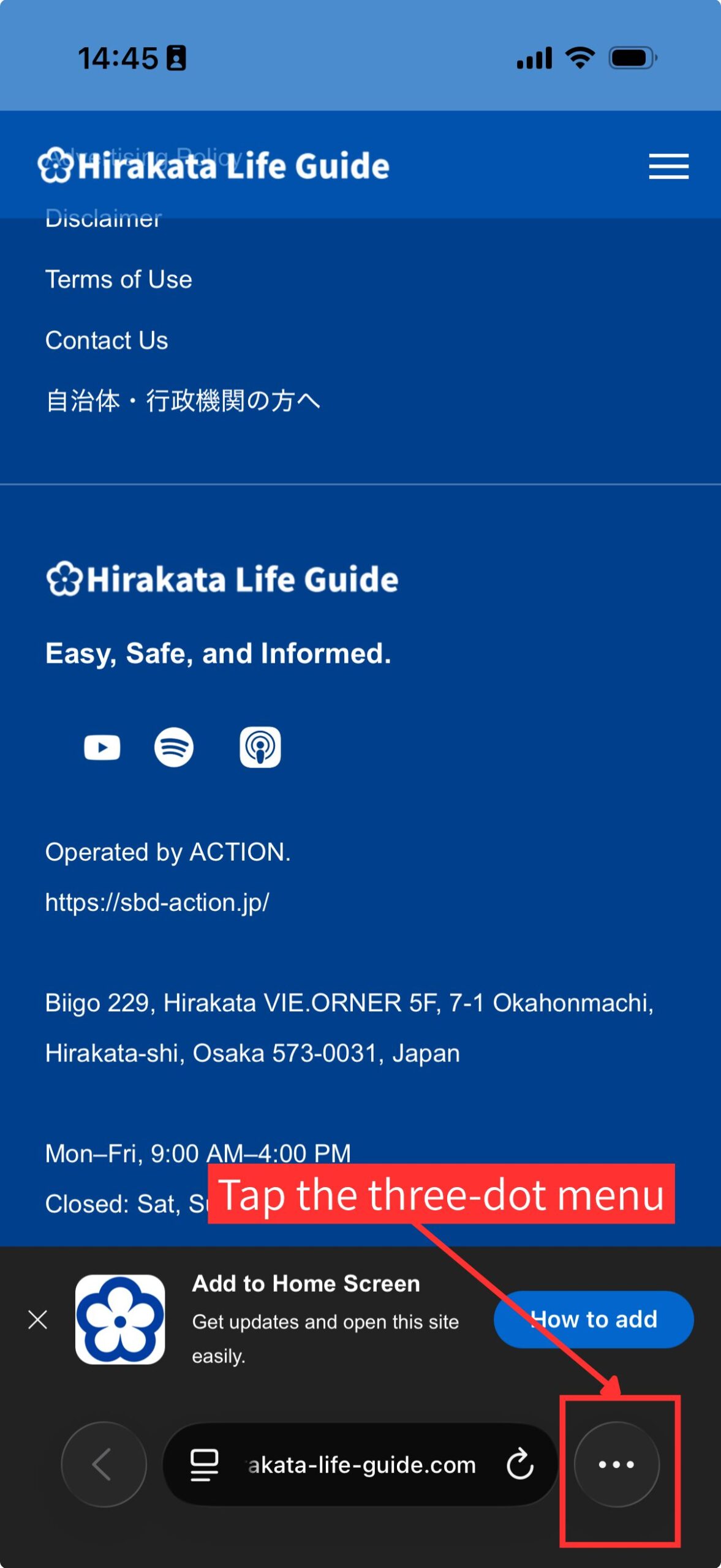
Open the menu.
Open Hirakata Life Guide in your browser. At the bottom right of the screen, tap the three-dot menu button.
2
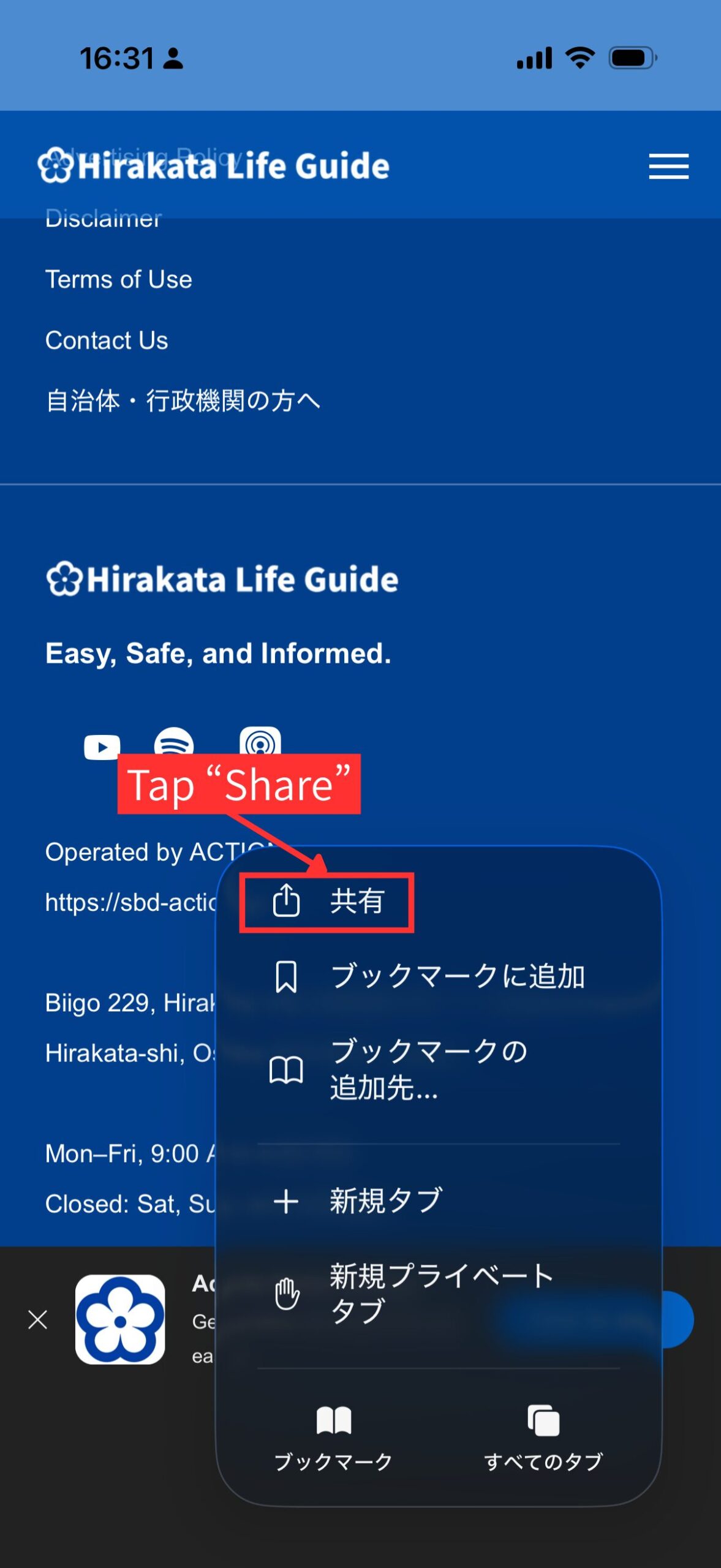
Tap “Share”.
When the browser menu opens, tap “Share”. It is usually shown near the top of the menu with a share icon.
3
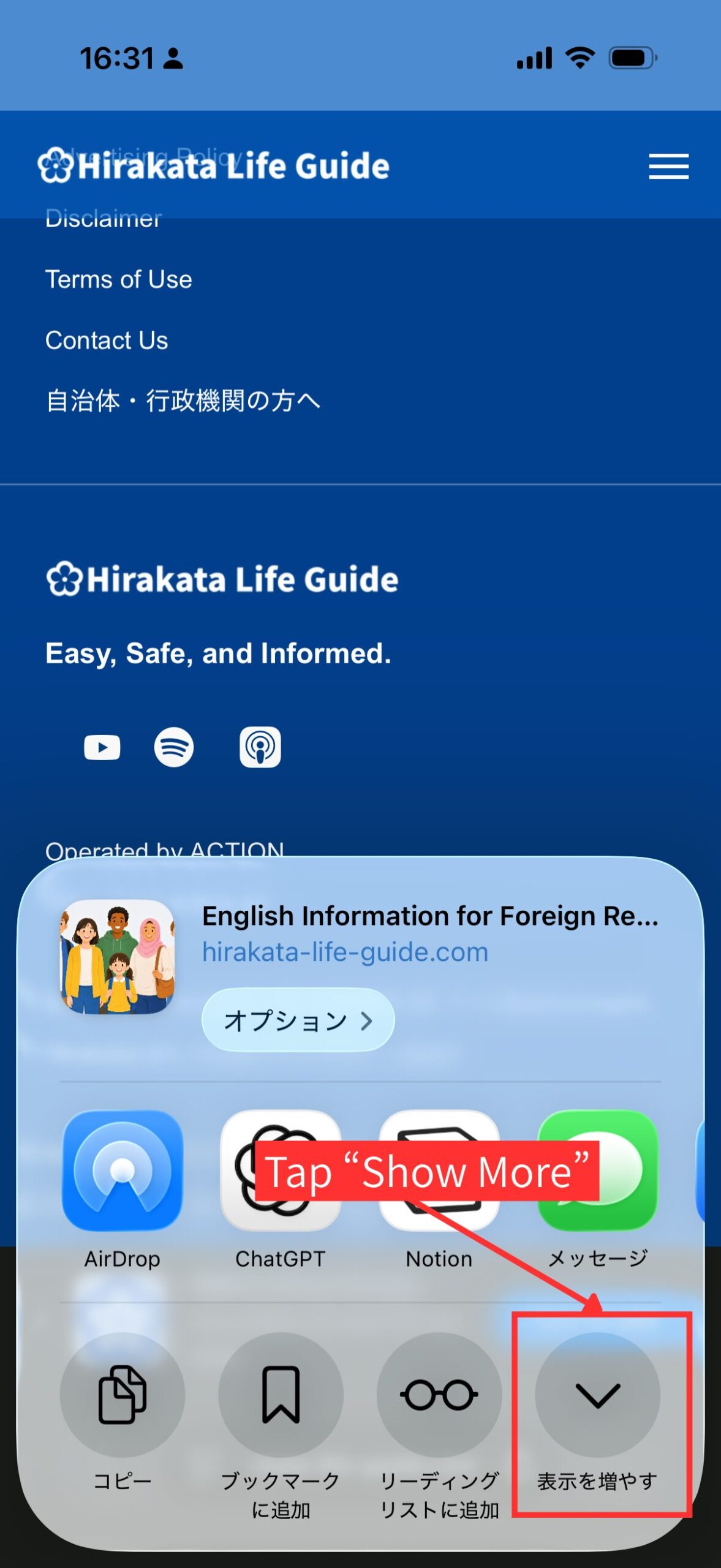
Tap “Show More”.
The share menu will appear. If you cannot see “Add to Home Screen”, tap “Show More” to display more options.
4
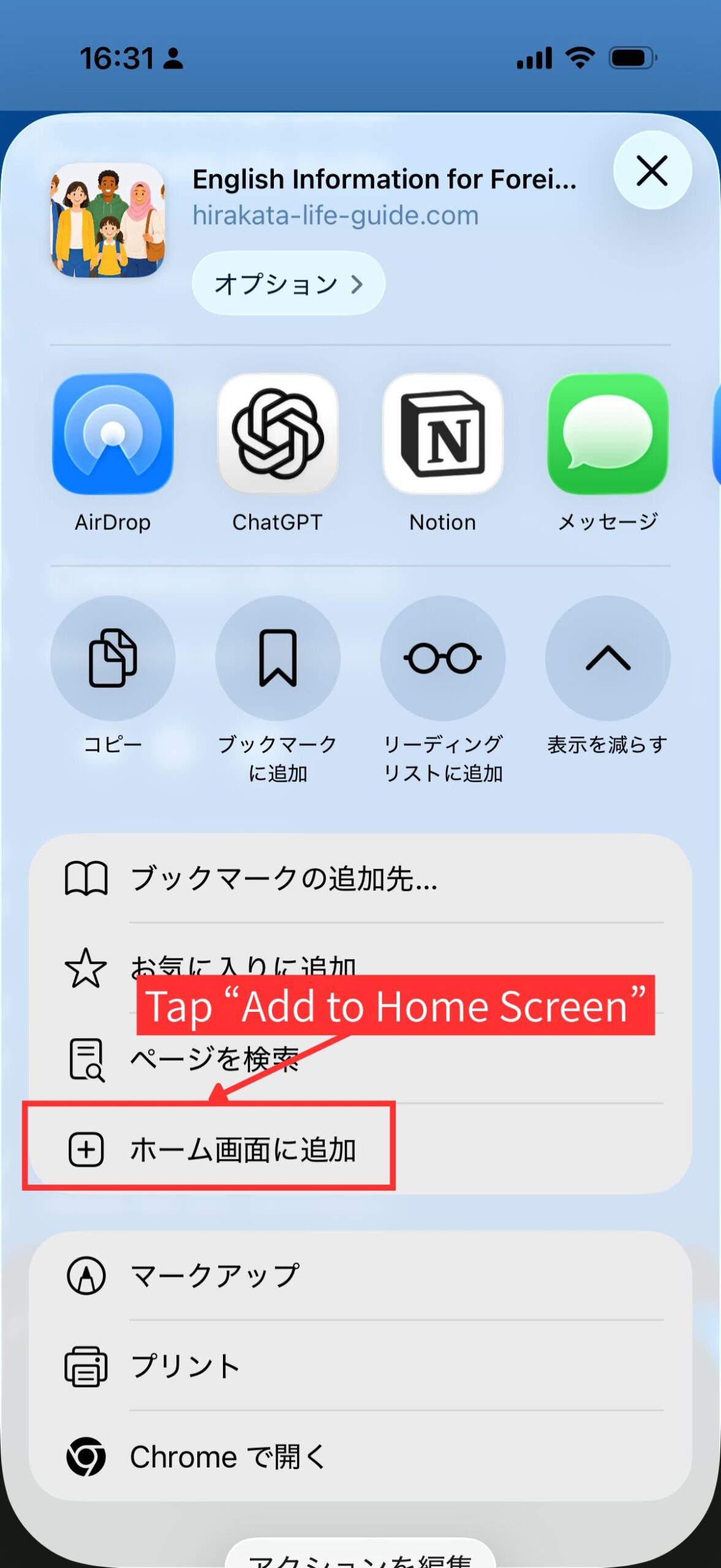
Tap “Add to Home Screen”.
Scroll through the menu and tap “Add to Home Screen”. This will create a Hirakata Life Guide icon on your Home Screen.
5
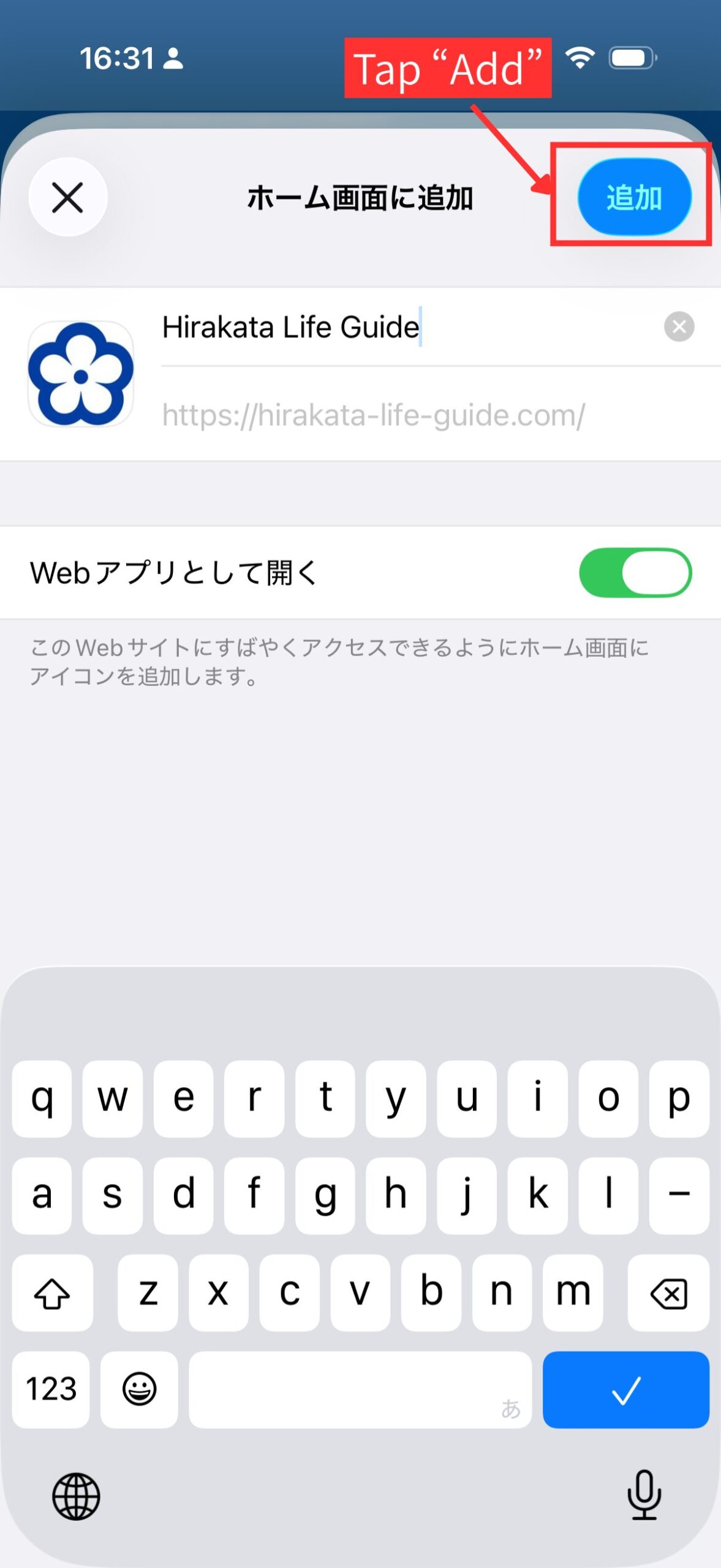
Tap “Add”.
Check that the Hirakata Life Guide icon and site name are displayed correctly. Then tap “Add” in the upper right corner.
6
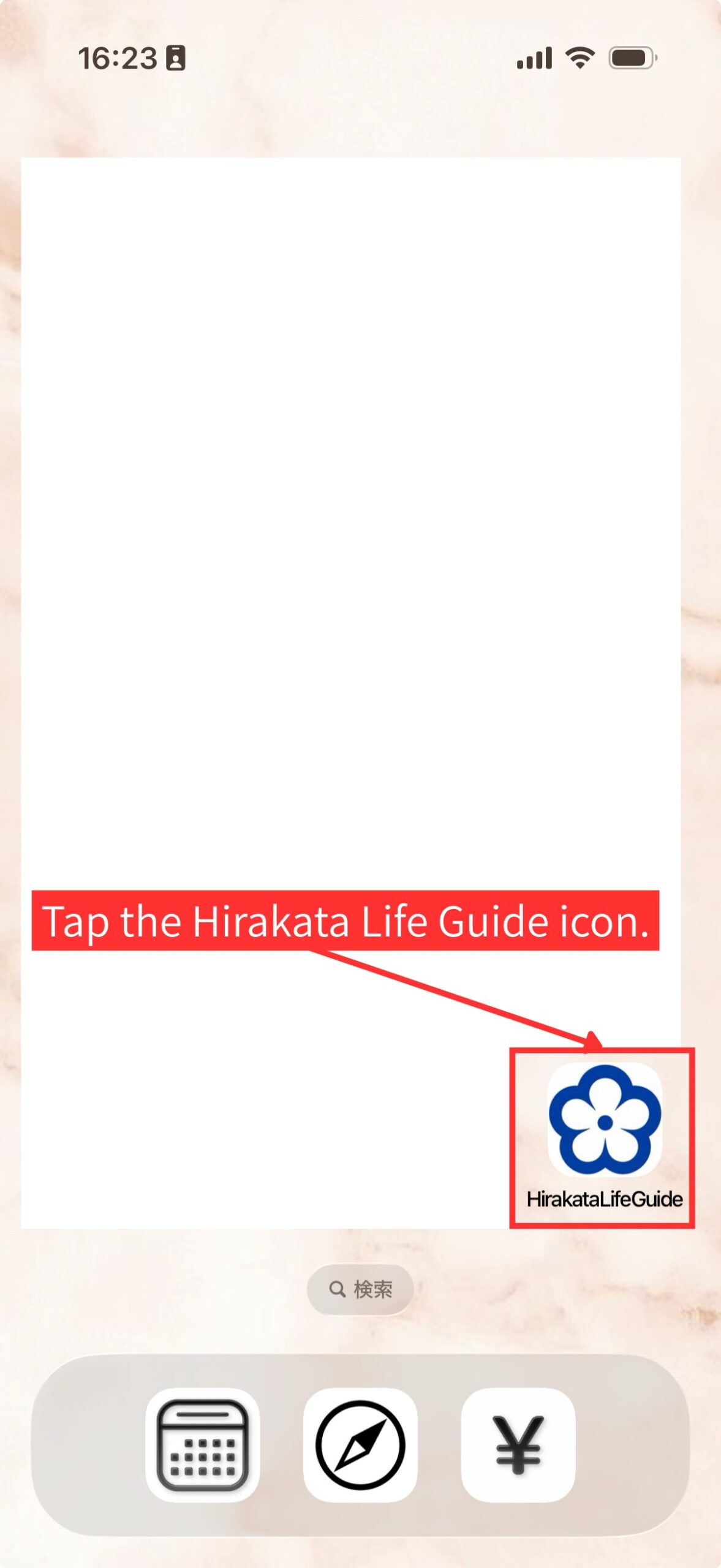
Tap the Hirakata Life Guide icon.
Return to your Home Screen and tap the Hirakata Life Guide icon. The site will open like a web app.
7
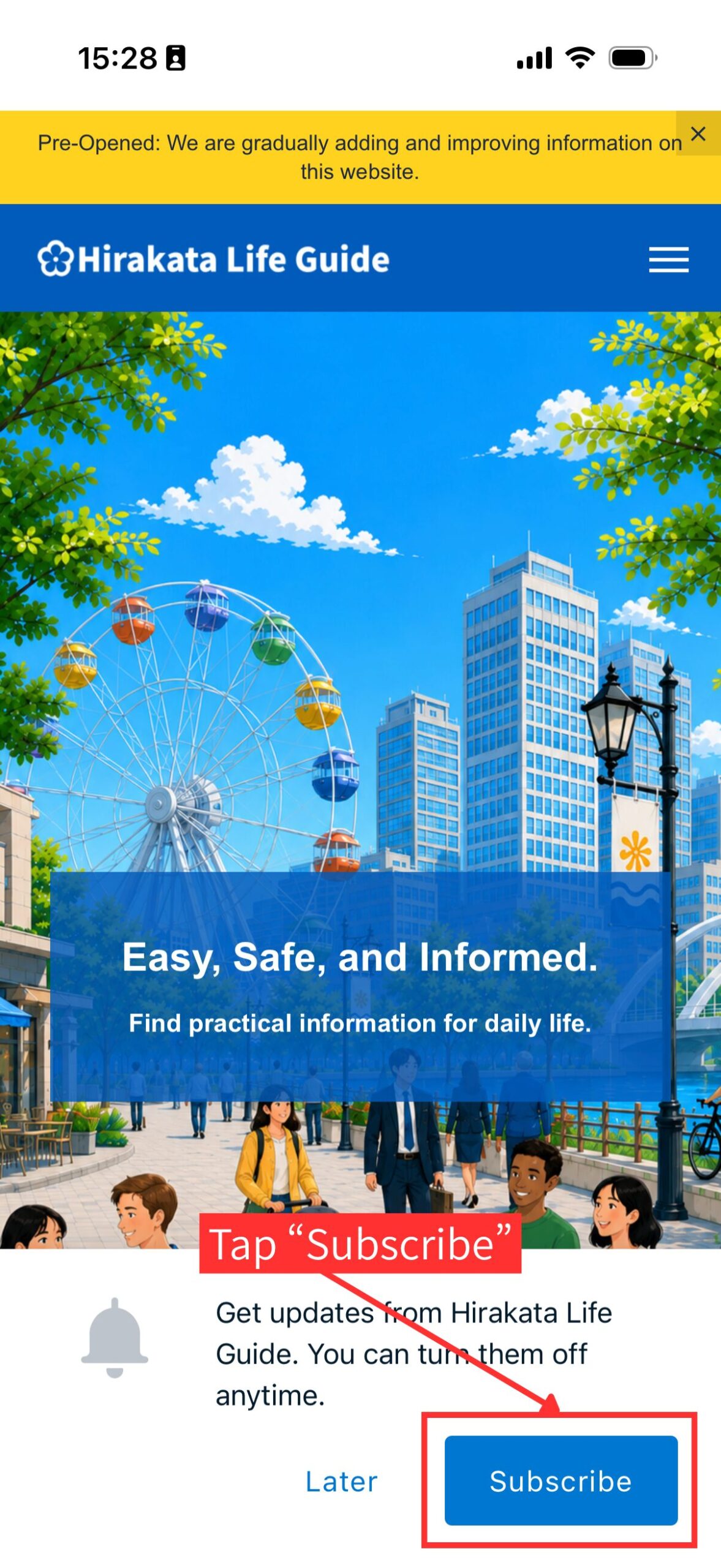
Tap “Subscribe”.
After opening Hirakata Life Guide from the Home Screen icon, tap “Subscribe” to start the notification setup.
8
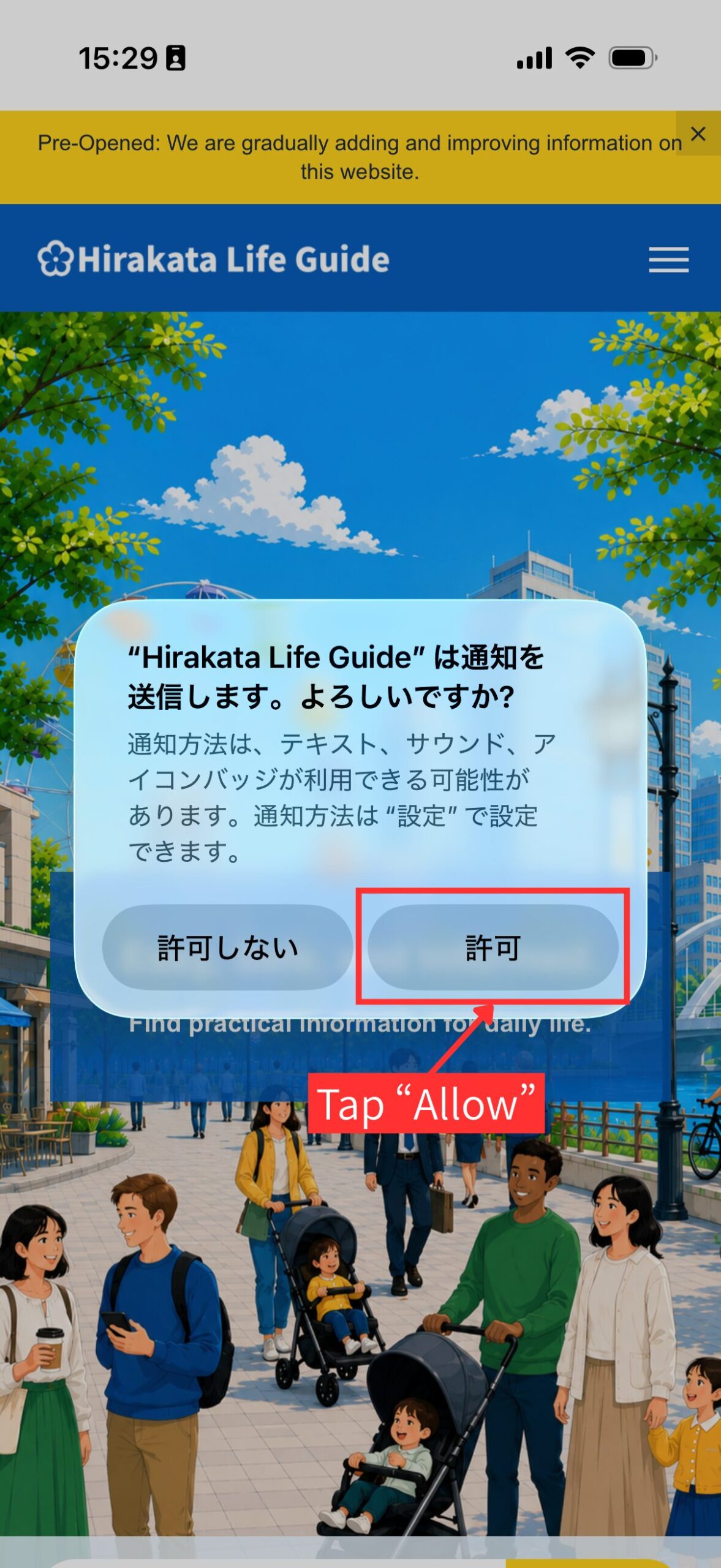
Tap “Allow”.
Your iPhone or iPad will ask for permission to send notifications. Tap “Allow” to receive updates from Hirakata Life Guide.
9
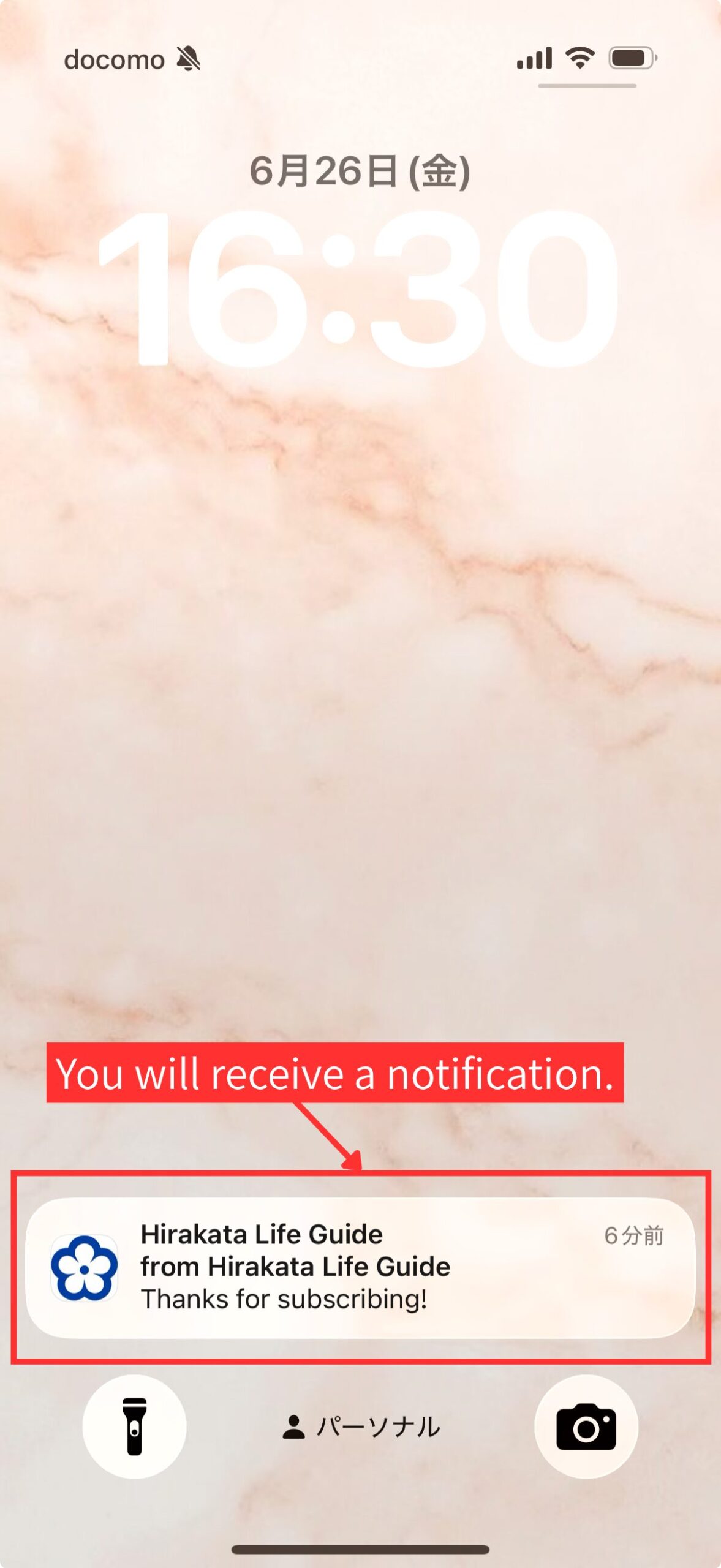
You will receive a notification.
After notifications are allowed, you will receive updates from Hirakata Life Guide. You can turn off notifications later in your device settings.
Android
On Android, you can add Hirakata Life Guide to your Home Screen and turn on notifications from your browser.
!
NoteMenu names, positions, and icons may differ depending on your device, Android version, and browser.
1
Open Hirakata Life Guide in your browser.
Open Hirakata Life Guide in Chrome or another browser on your Android device.
2
Open the browser menu.
Tap the menu button in your browser. In many browsers, this is shown as three dots near the top right or bottom right of the screen.
3
Add the site to your Home Screen.
Tap “Add to Home screen”, “Install app”, or a similar option. The wording may differ depending on your browser.
4
Confirm and add the icon.
Check the site name and icon, then tap “Add”, “Install”, or the confirmation button shown on your screen.
5
Open Hirakata Life Guide from the Home Screen.
Return to your Home Screen and tap the Hirakata Life Guide icon. The site will open like a web app.
6
Tap “Subscribe”.
When the notification message appears, tap “Subscribe” to start the notification setup.
7
Allow notifications.
If your device asks for permission to send notifications, tap “Allow” to receive updates from Hirakata Life Guide.
8
You will receive notifications.
After notifications are allowed, you will receive updates from Hirakata Life Guide. You can turn off notifications later in your browser or device settings.
PC
You can receive Hirakata Life Guide notifications on your computer too. Follow the steps below to allow notifications in your browser and computer settings.
!
NoteThese screenshots were taken on a Mac computer using Google Chrome. Menu names, positions, and icons may differ depending on your computer and browser.
“`
1
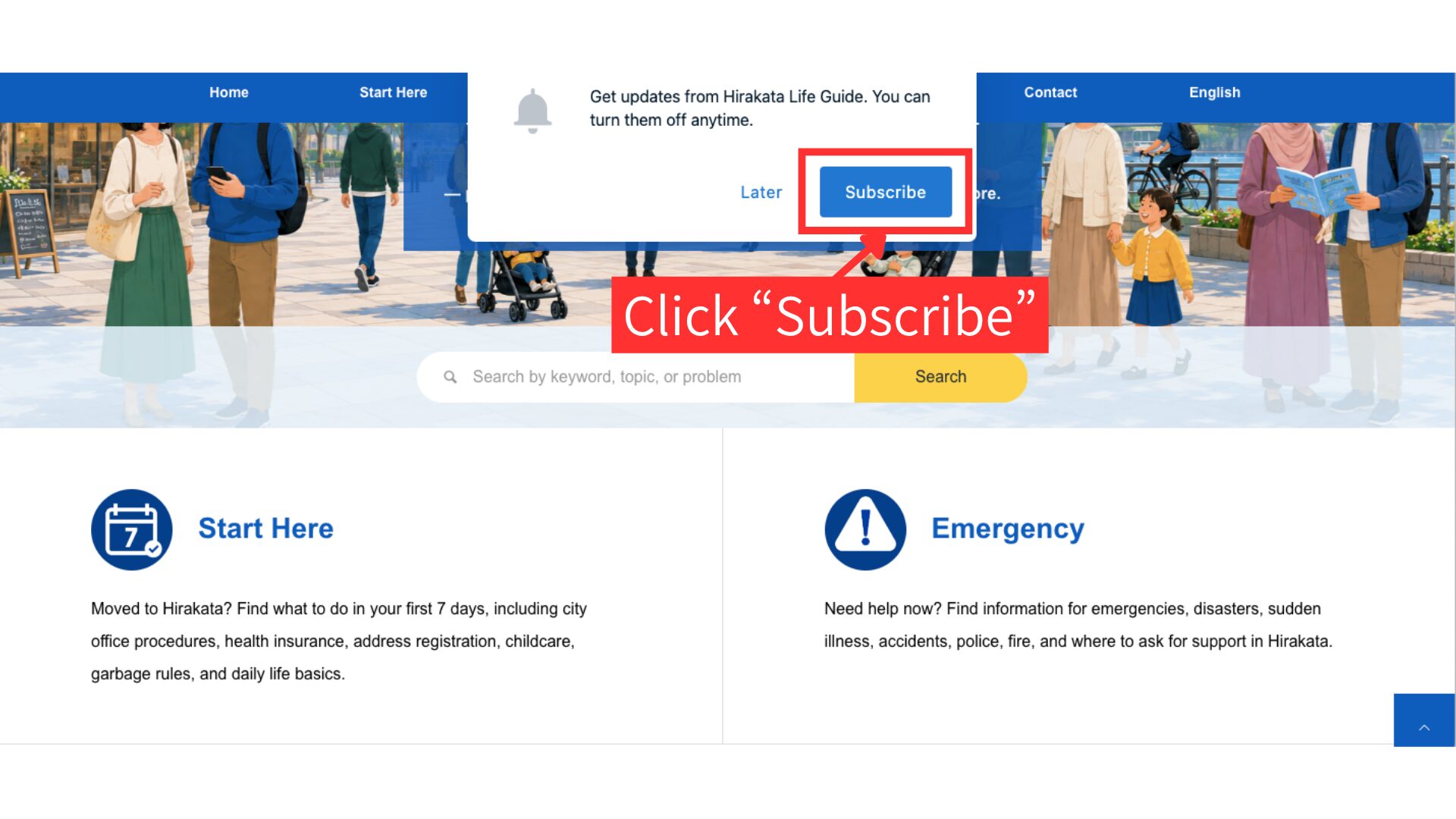
Click “Subscribe”.
Click “Subscribe” to receive updates from Hirakata Life Guide.
2
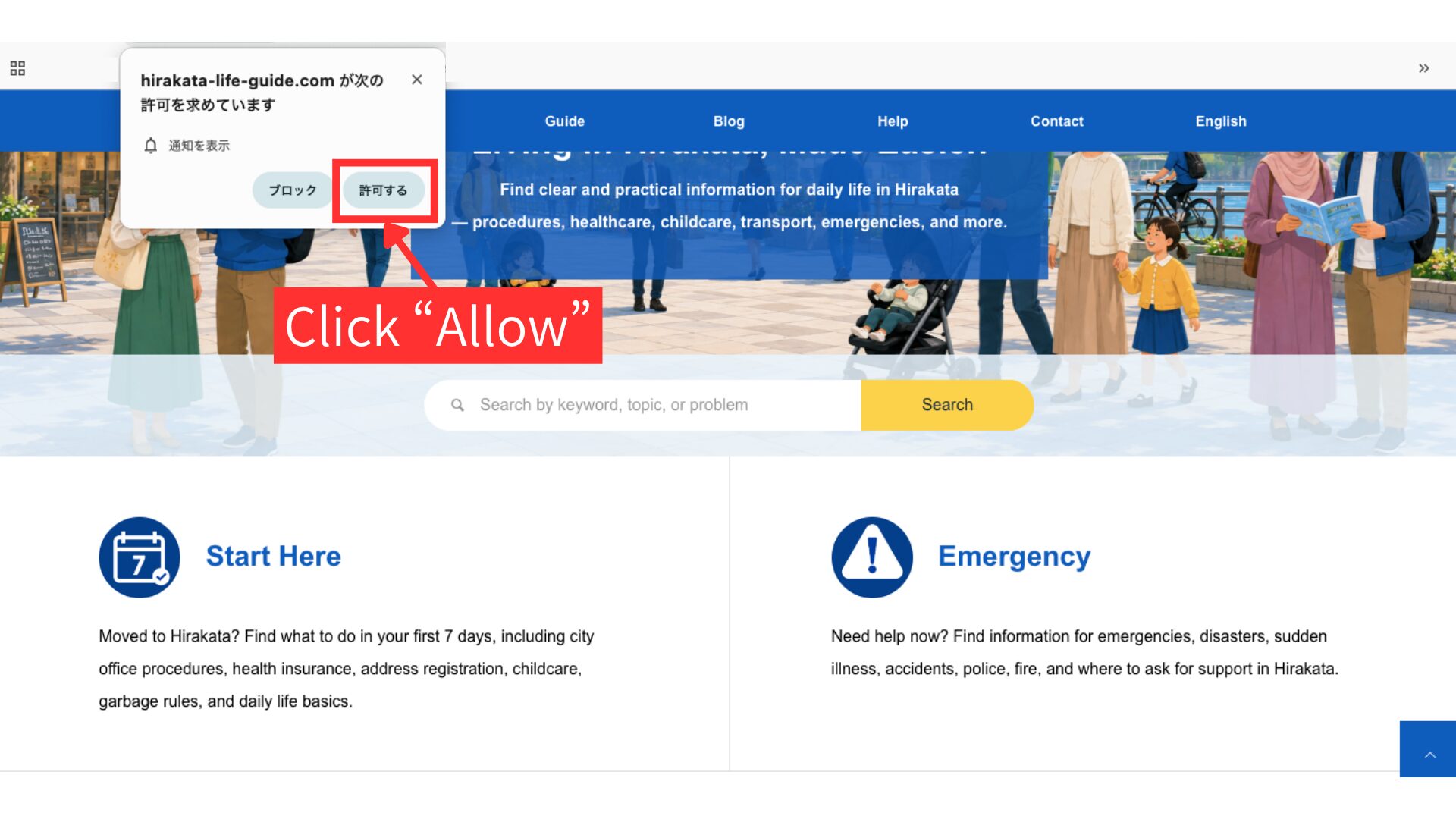
Click “Allow”.
When your browser asks for permission, click “Allow”.
3
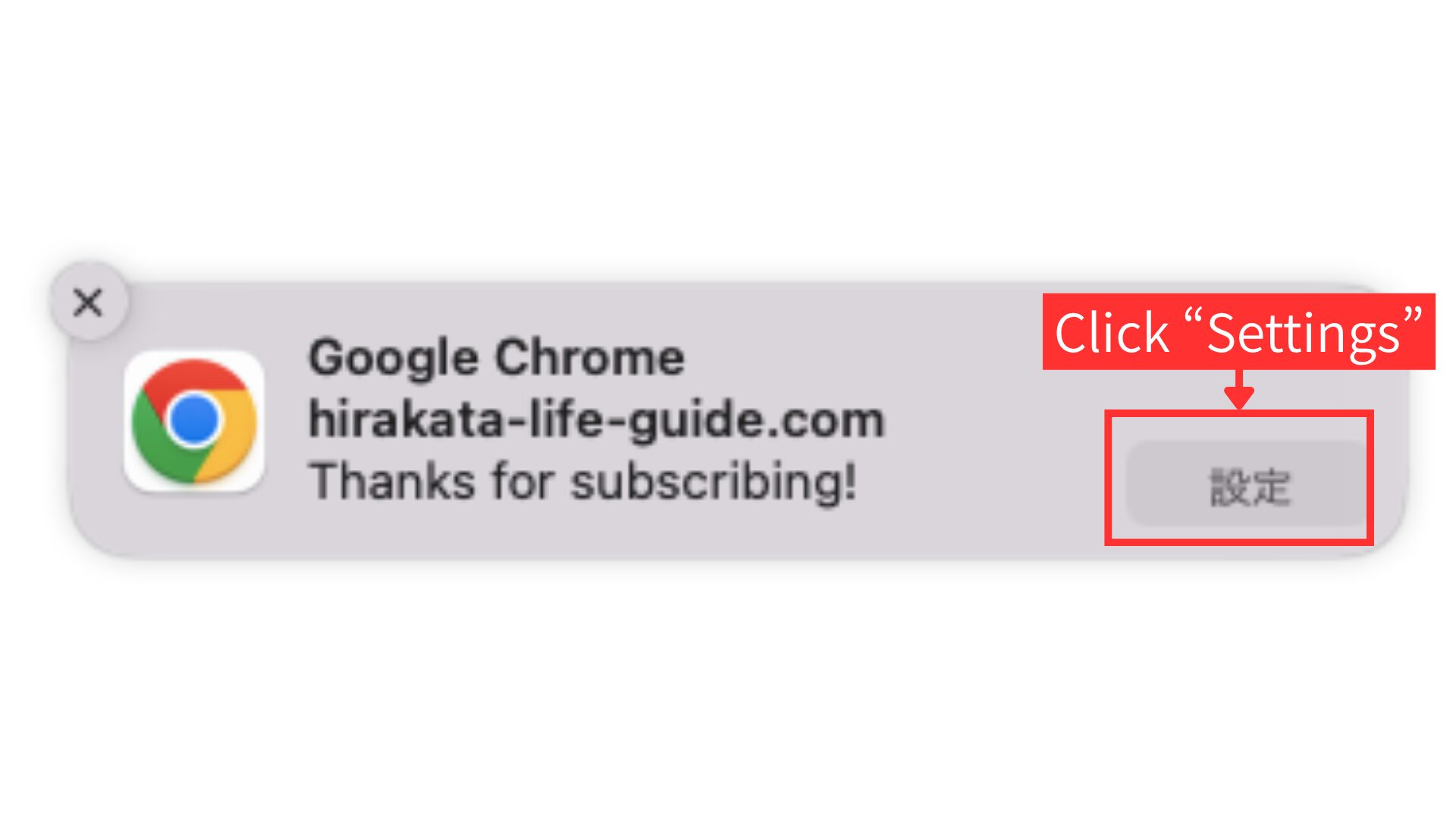
Click “Settings”.
If a notification message appears, click “Settings”.
4
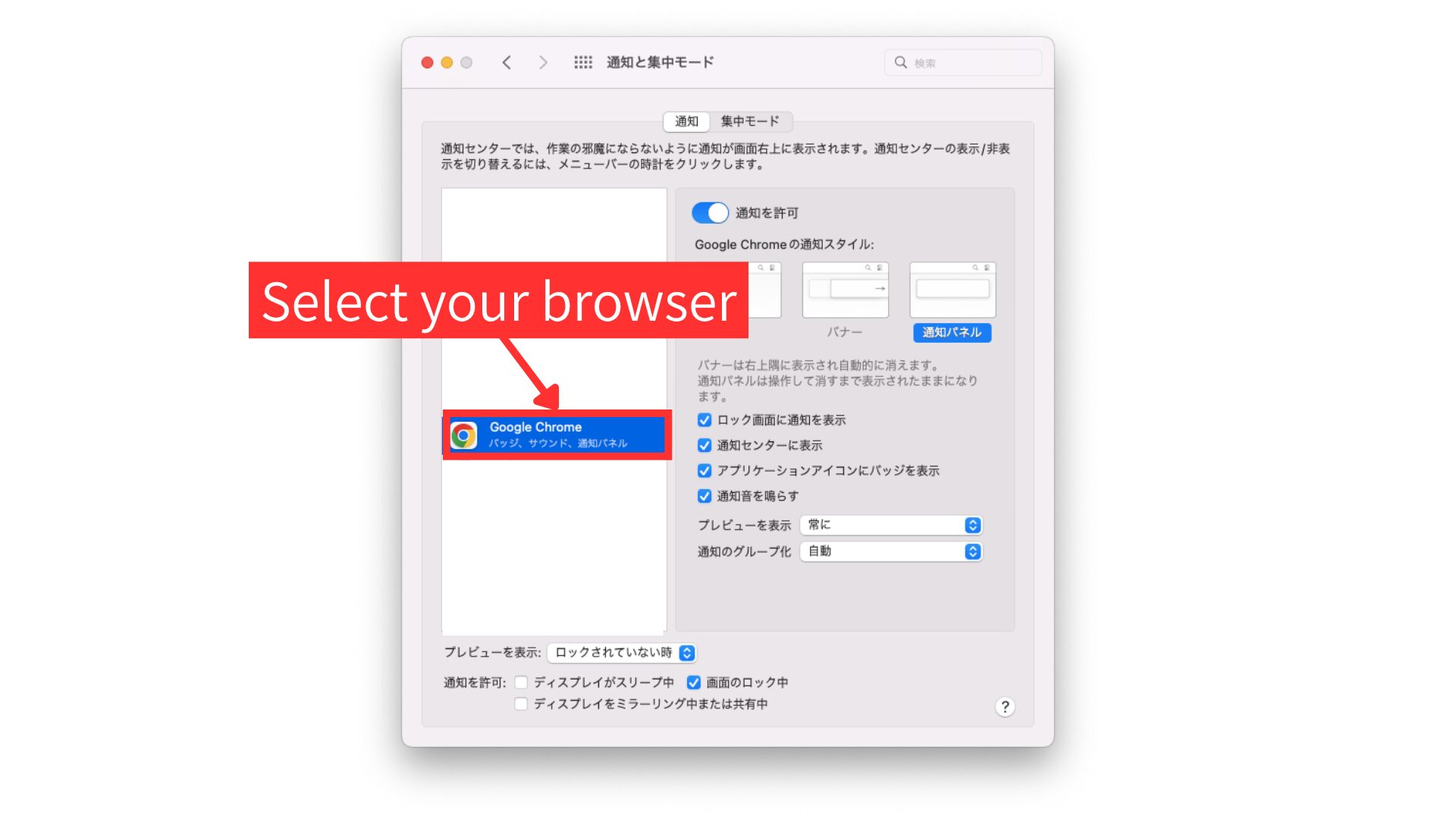
Select your browser.
Select the browser you use for Hirakata Life Guide.
5
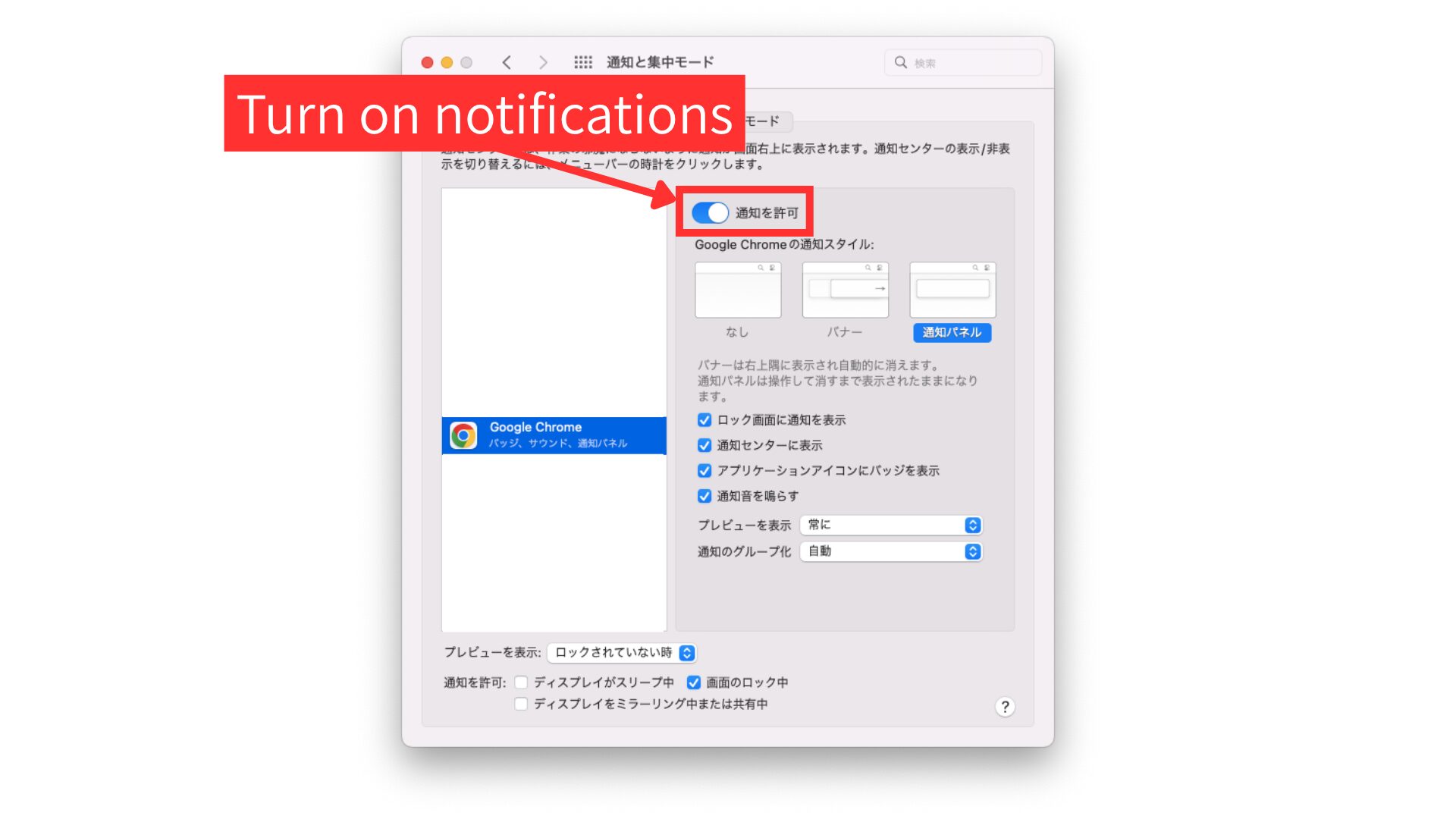
Turn on notifications.
Make sure notifications are turned on for your browser.
6
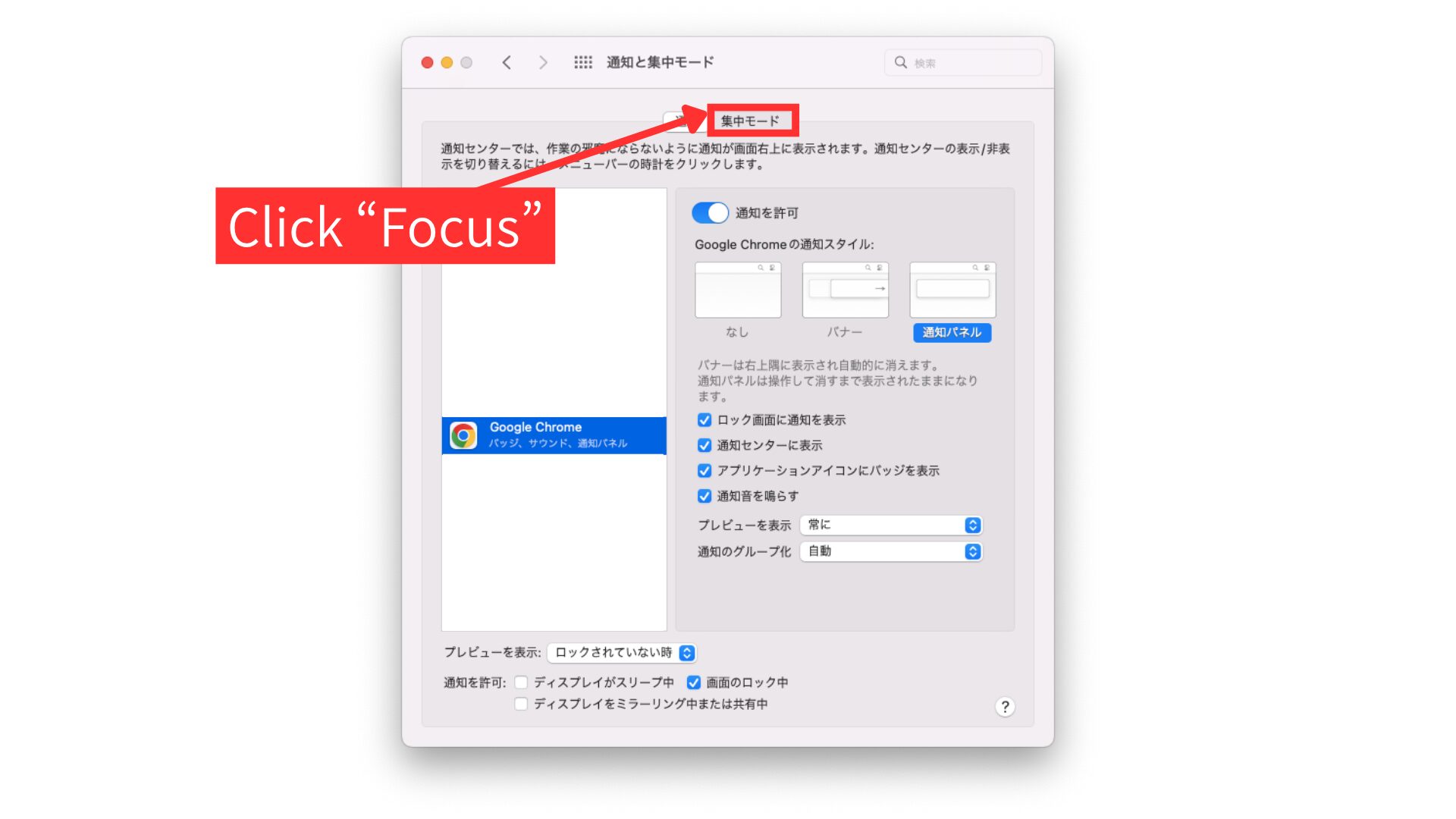
Click “Focus”.
Open the Focus settings on your computer.
7
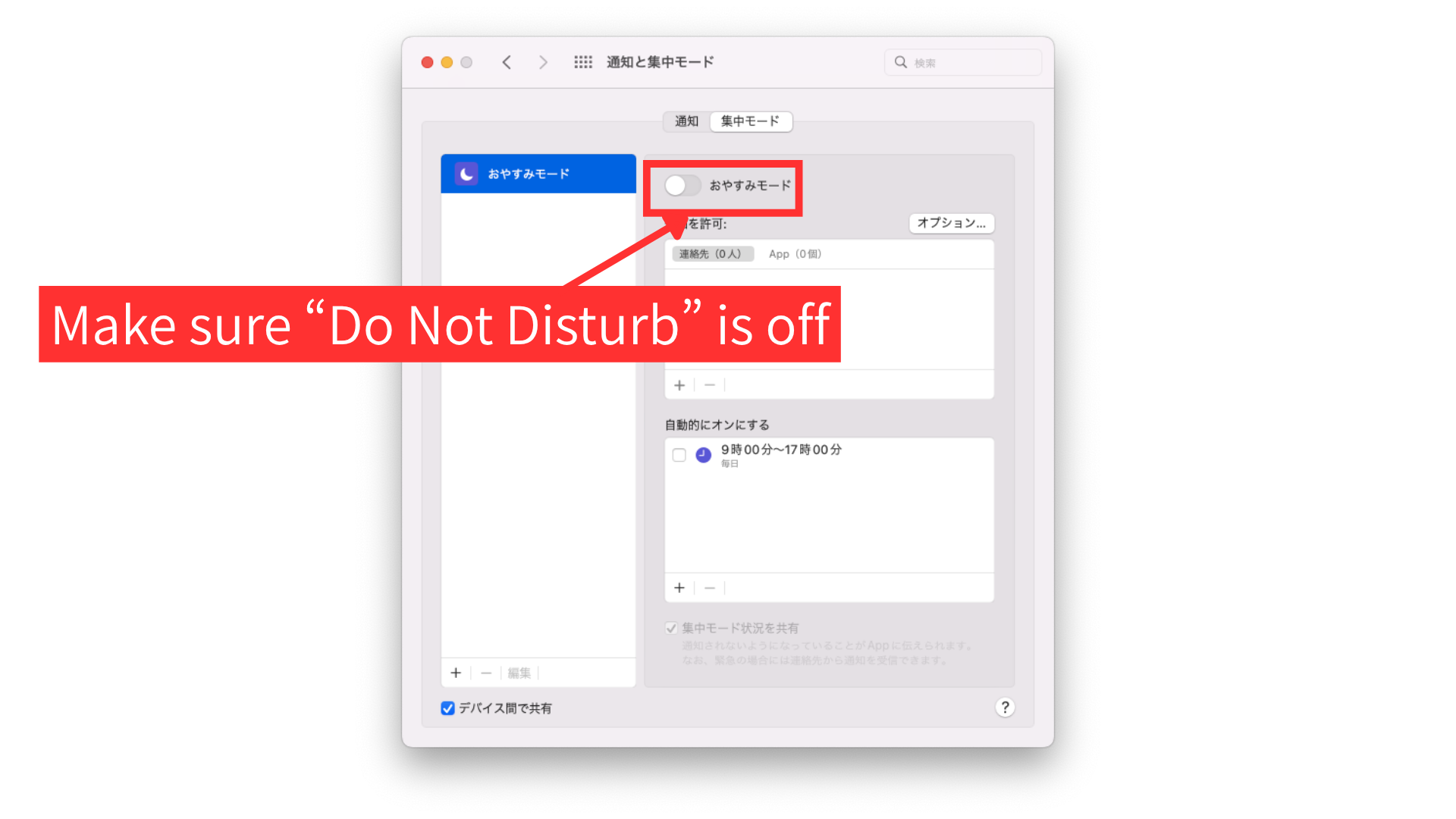
Make sure “Do Not Disturb” is off.
Make sure “Do Not Disturb” is turned off. If it is on, notifications may not appear.